



Your iPhone is now your Kuwait Finance House Bank Egypt card.
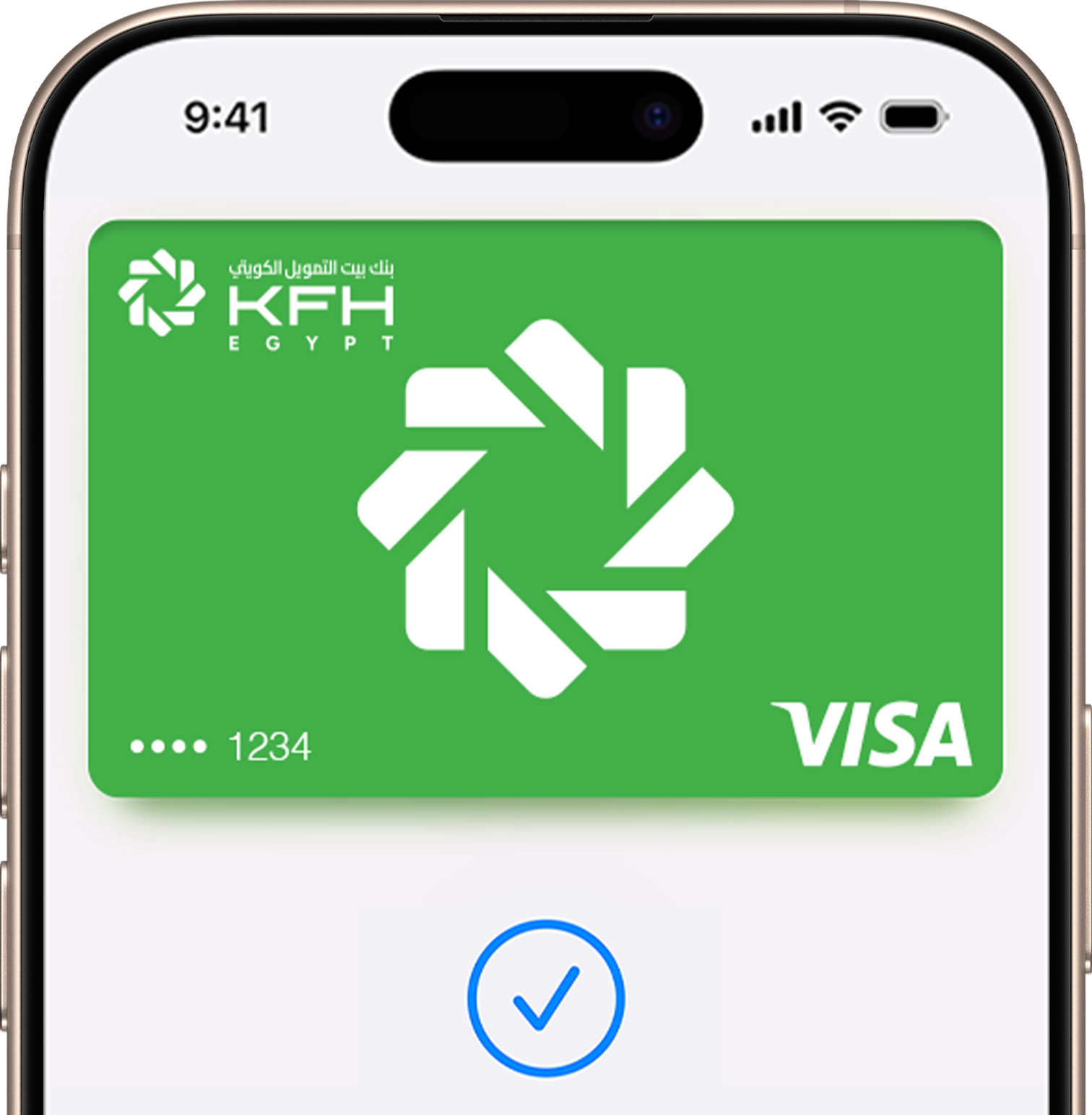
An easy, secure, and private way to pay.
Apple Pay lets you make purchases with your Kuwait Finance House Bank Egypt card using any Apple device — just like you would with your physical card — in stores, online, and in apps.
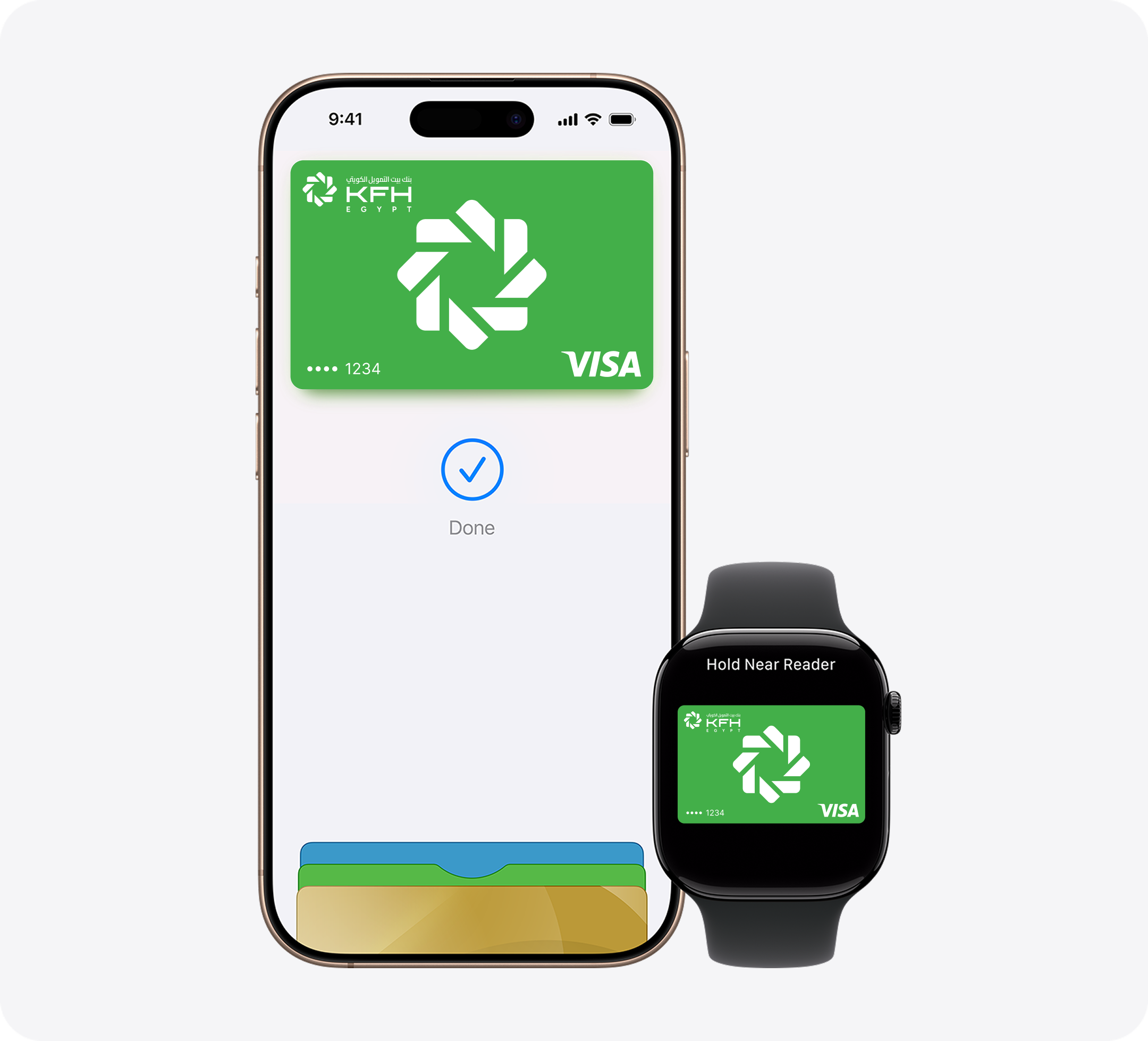

Apple Pay on one. Apple Pay on all.
Apple Pay is built into iPhone, Apple Watch, Mac, iPad, and Apple Vision Pro. If you add your Kuwait Finance House Bank Egypt card to Apple Wallet on iPhone, you’ll have the option to add it to your other Apple devices in one easy step.

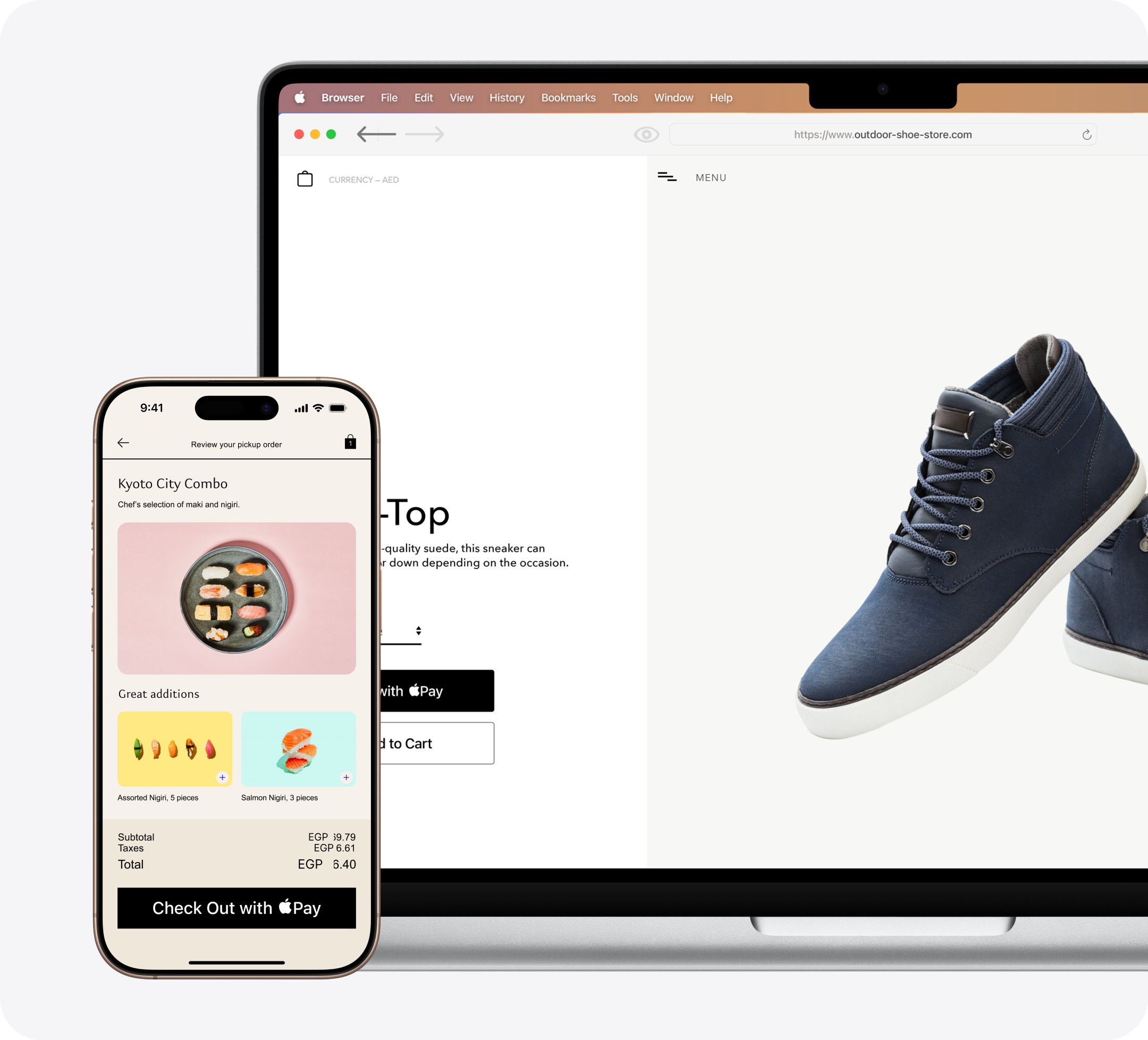
Shop in person. Online.
Or in apps.
Apple Pay is accepted by millions of merchants around the world. Just look for  or the contactless payment symbol at checkout and pay with your Kuwait Finance House Bank Egypt card. To check out with Apple Pay if you’re on a computer but not using Safari or a Mac, click the button and scan the code that appears onscreen with your iPhone.◊
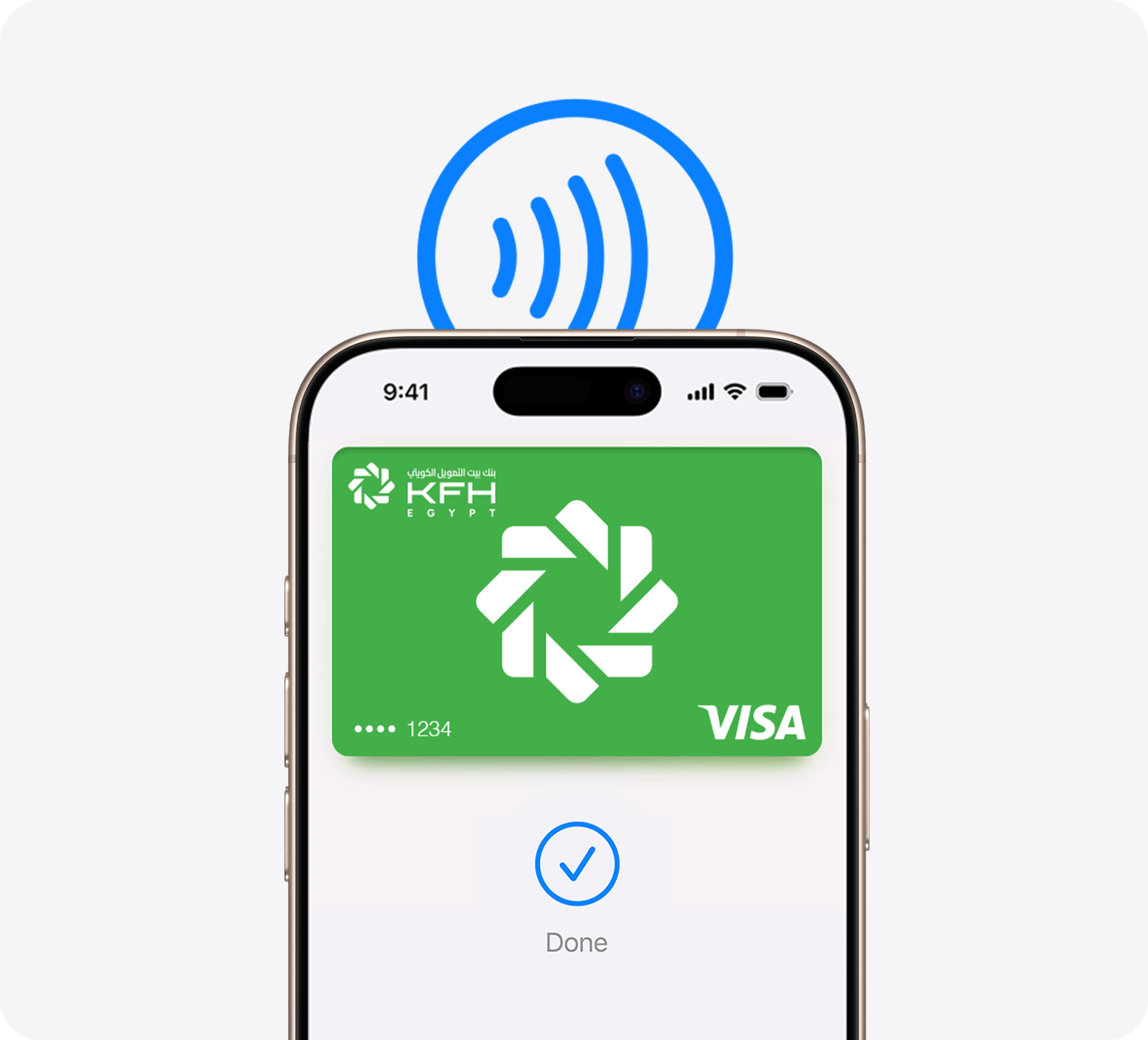

Tap. Pay. Done.
Apple Pay lets you skip entering your address or CVC code at checkout — so you can pay with your Kuwait Finance House Bank Egypt card with a simple glance or touch.

Designed to be secure.
So only you can pay.
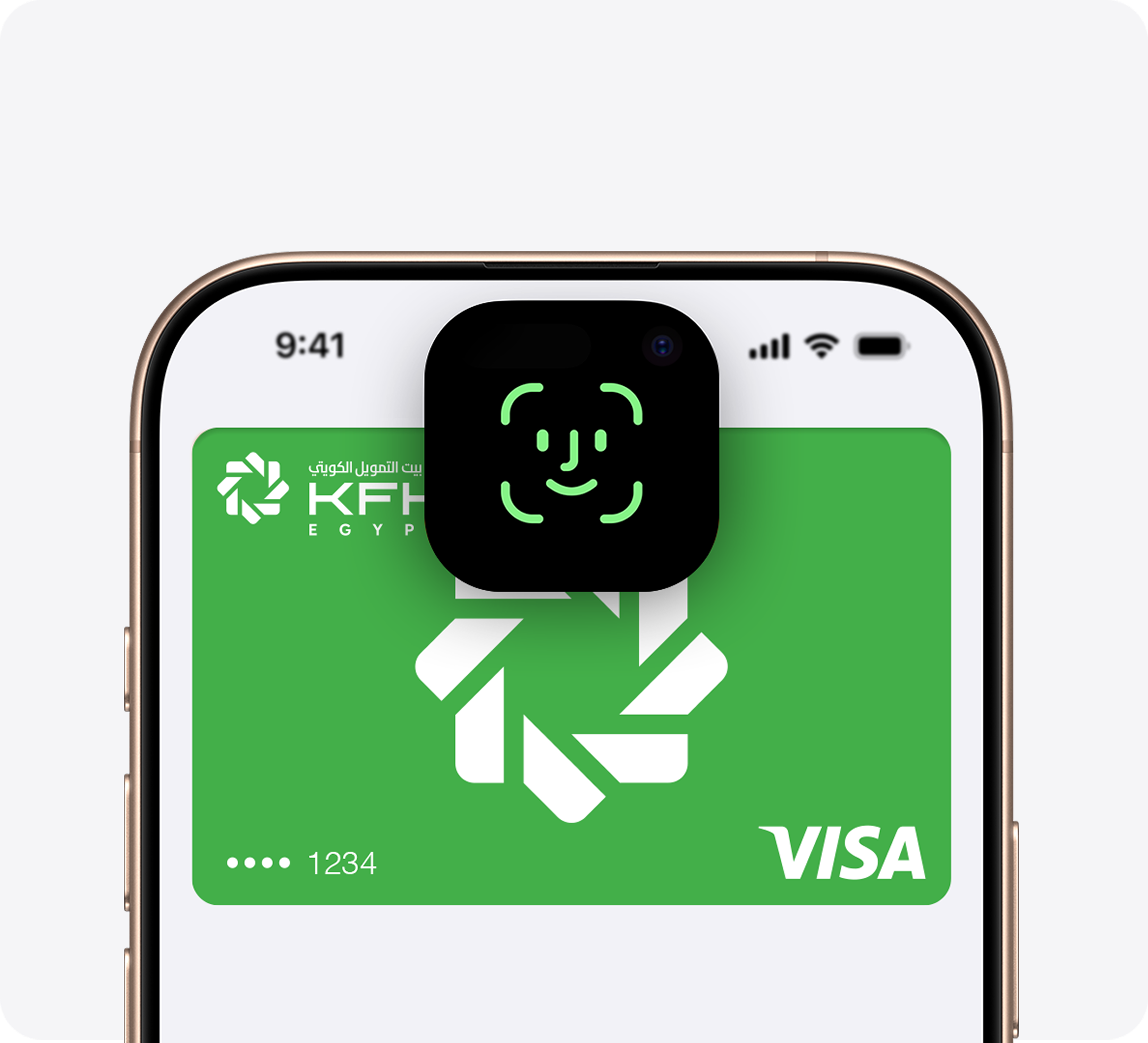
Apple Pay transactions require authentication through your device’s built-in security features — including Face ID, Touch ID, and your passcode. Your debit or credit card number is never shared with merchants by Apple or stored on Apple servers. And, if you misplace your iPhone, you can quickly mark it lost on Find My to suspend your Kuwait Finance House Bank Egypt card.
Add your Kuwait Finance House
Bank Egypt card in a few steps.

Open Apple Wallet on your iPhone.

Tap the Add (+) button, then tap Debit or Credit Card.

Follow the steps on the screen to add a new card.
Learn more about using Apple Pay.
How to add your card
Face ID
Touch ID
FAQ
1. What is Apple Pay?
Apple Pay enables you to make secure and convenient payments using your iPhone, Apple Watch, iPad, or Mac. Instead of using an actual credit, debit, or prepaid card, you can easily tap your device on a contactless payment terminal to perform your payment.
2. How can I download the app?
There is no need to download the app as it is automatically available on iOS devices under the name “Wallet.”
3. How does Apple Pay operate?
Apple Pay facilitates in-store mobile payments by establishing a wireless connection with POS systems via NFC (Near Field Communication)
Apple Pay facilitates in-app purchases, allowing users to make online transactions by subscribing to services like Apple Music, Apple News+, and Apple TV+, buying apps and games from the App Store, or upgrading iCloud storage.
4. How can I add my KFH – Egypt Card to Apple Wallet?
There are three methods to provision your card:
Through KFH Mobile Banking Egypt App: choose the card you want to add to Apple Wallet by clicking the “Add to Apple Wallet” button and proceed with the steps that follow.
Directly through Apple Wallet: scan the front of the card using the camera or enter the card details manually then follow the on-screen instructions to activate.
Instead of the manual entry: tap ‘+’ inside Apple Wallet and select KFH Egypt mobile banking application icon. Once you sign in with your Mobile Banking credentials, your available cards will appear automatically for immediate setup.
5. What should I expect if I enter incorrect card details?
You will receive a pop-up notification “invalid card data”. Please re-enter your card information correctly.
6. Why isn’t my card data being reflected after scanning the card?
If the scan is unsuccessful, please input your card details manually to proceed with the setup.
7. Who is eligible to use Apple Pay service?
All KFH – Egypt customers who own Apple devices
8. Which devices support Apple Pay?
Apple Pay works on the following devices:
iPhone:
Minimum iOS Version: 17.5
Minimum Device Model: iPhone XS
iPad:
iPad Pro, iPad Air 2, iPad mini-4, iPad mini- 3
Apple Watch:
Minimum watchOS Version: 10.5
Mac:
Minimum macOS Version: 14.5
9. How Can I use Apple Pay?
Apple Pay is compatible with various Apple devices, provided they meet the
minimum software and hardware requirements
On iPhone (XS or later): Double-click the side button, authenticate via Face ID or your passcode, then hold the top of your iPhone near the contactless reader until you see “Done”.
On Apple Watch: Double-click the side button and hold the watch face near the point-of-sale terminal until you feel a gentle tap.
In-App and Online Payments:
Look for the Apple Pay button at checkout when using your iPhone, iPad, or
Mac.
Tap the “Buy with Apple Pay” button.
Follow the on-screen instructions to verify your order.
Confirm your payment:
iPhone/iPad: Use Face ID, Touch ID, or your passcode.
Apple Watch: Double-click the side button.
Mac: Use Touch ID or follow the prompts on your connected iPhone/Watch.
A “Done” checkmark will appear once the transaction is successful.
10. How can I add my bank card to the Apple Watch?
By logging into the KFH mobile banking application and clicking on the card that you wish to add to the Apple Watch through the Add to Apple Wallet button, and then completing the steps that will appear to you.
Through Apple Wallet directly by entering the card data manually or scanning the front side of the card through the camera and then follow the steps that instructed on Apple Wallet.
Via Apple Wallet: Tap the + icon to add your cards. Locate and select the KFH – Egypt mobile banking icon, then enter your username and password. Your eligible cards will be displayed automatically, allowing you to add them without manually entering card details.
11. In what ways is Apple Pay more secure than a physical card?
Apple Pay enhances your financial privacy by utilizing a unique ‘Device Account Number’ instead of your actual card details during transactions. This ensures your sensitive information is never shared with merchants. Additionally, every payment requires your personal authorization via Face ID, Touch ID, or a passcode, providing a multi-layered defense against unauthorized use
12. How many cards can be added to the device?
For devices running iOS 17.5 or later, there is no longer a maximum limit on the number of cards you can add to your Apple Wallet


